What the Harmony Wheel Is
A guitar tuner tells you what note you’re playing. The Harmony Wheel tells you what chord you’re playing — and then goes one step further, showing you what that chord is doing in the key. Feed it audio (from your mic or a track), play MIDI into it, or click its own keyboard, and it names the chord and lights up its function on a wheel.
The five surfaces
A row of five icons across the top switches between the app’s surfaces — one tap each:
- Wheel — the harmony wheel itself, the default surface and the heart of the app.
- Tetrachord Toolkit — build and hear scales from two stacked four-note halves.
- Random Chord Generator — roll up a fresh progression for ideas.
- Guidebook — the Musician Basics music-theory guide, built right in.
- Options — settings.
We’ll take each in turn. The Wheel is where you’ll spend most of your time, so start there.
Reading the wheel
Here’s the Wheel surface with everything labeled. Each numbered part gets covered in the chapters ahead.
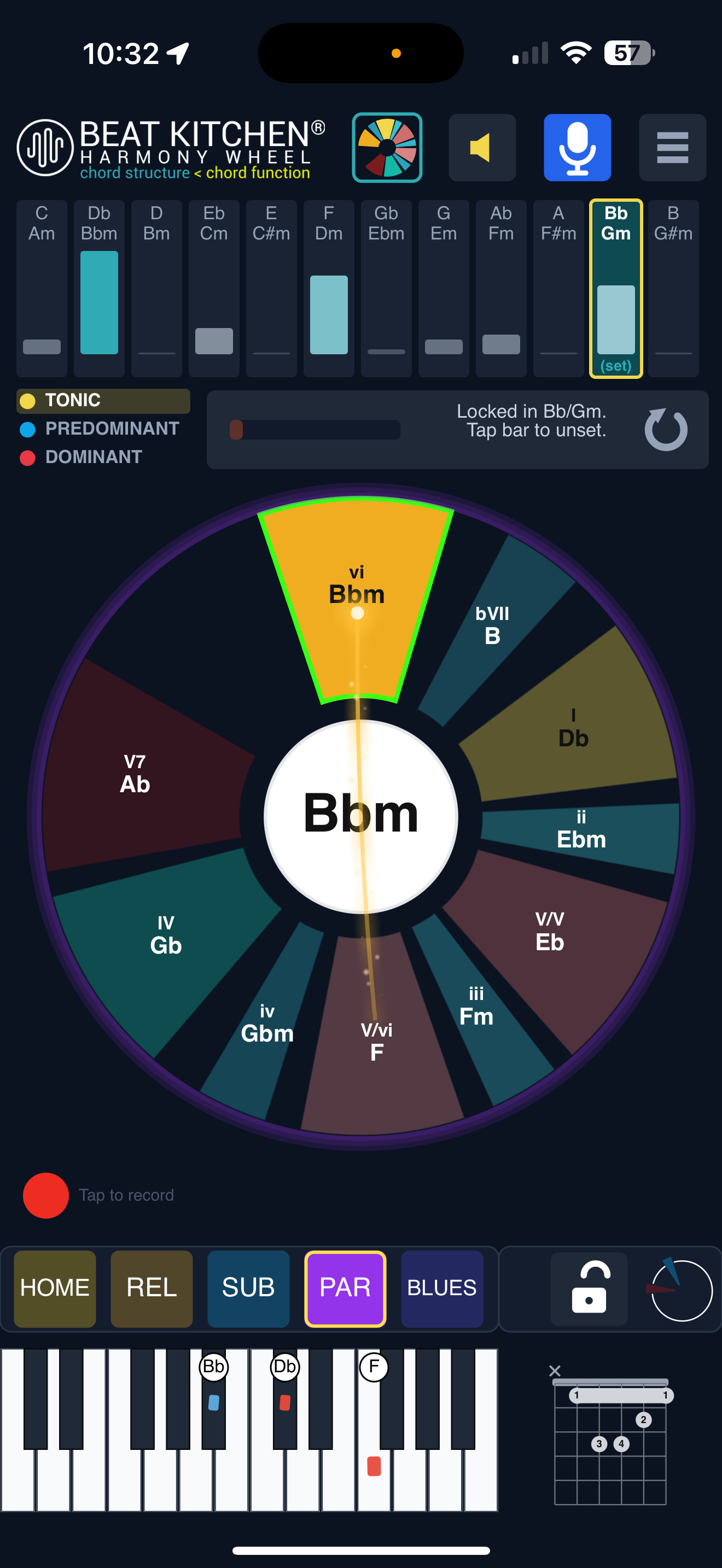
- Chord name — the chord you’re playing, identified in real time.
- Function wedges — each chord’s role in the key. The lit wedge is yours; the colors group the three functions.
- Tonic / Predominant / Dominant — the three jobs a chord does: home, build tension, pull home. The wedge colors match.
- Key strip — live key detection; bar height is confidence. Changing harmonic spaces needs a locked key — lock the most likely one by tapping its bar.
- Spaces — Home, Subdominant, Parallel, Relative, Blues: the harmonic regions. As you borrow or modulate, the wheel rotates into the matching space.
- Mic — blue when it’s listening through your microphone. Or feed it MIDI for exact input.
- Keyboard — the detected chord’s notes on a piano (and a guitar voicing).
- Record — capture your progression.
How it fits together
The flow is simple: sound comes in (mic, MIDI, or the on-screen keyboard), the wheel detects the chord and names it (1), then places it as a function (2, 3) within the current key (4) and harmonic space (5). The keyboard (7) shows you the notes; the wheel rotates as the harmony moves. Everything else — the Tetrachord Toolkit, the Random Generator — is a side tool built around that same theory.
What to Practice
- Open the app on the Wheel surface, turn on the Mic, and play a chord on any instrument. Watch it get named and placed.
- Tap through the five top-bar surfaces to see what’s there, then come back to the Wheel.
- Keep this labeled picture handy — the next chapters zoom in on each numbered part.
Search This Guide
This Course
- 1. What the Harmony Wheel Is
- 2. Reading a Chord — Wedges and Function
- 3. Harmonic Spaces
- 4. Finding the Key — Listen Mode and the Key Tracker
- 5. The Keyboard and Enharmonic Spelling
- 6. Mic, Speaker, Bonus Wedges, and the Legend
- 7. The Tetrachord Toolkit
- 8. The Random Chord Generator
- 9. The Built-in Guidebook
- 10. Options and Settings
When you're ready to take the next step, it starts with a place where you can ask questions. We teach live — small group, cameras optional, taught by someone who gives a shit.
Find Out How You Can Join Us →© 2026 Beat Kitchen School — beatkitchen.io. All rights reserved. Unauthorized reproduction or distribution of this material is prohibited.