Mic, Speaker, Bonus Wedges, and the Legend
A cluster of small controls decides what the wheel listens to, what it plays, and how much of the wheel is in reach. They’re easy to miss and worth knowing.
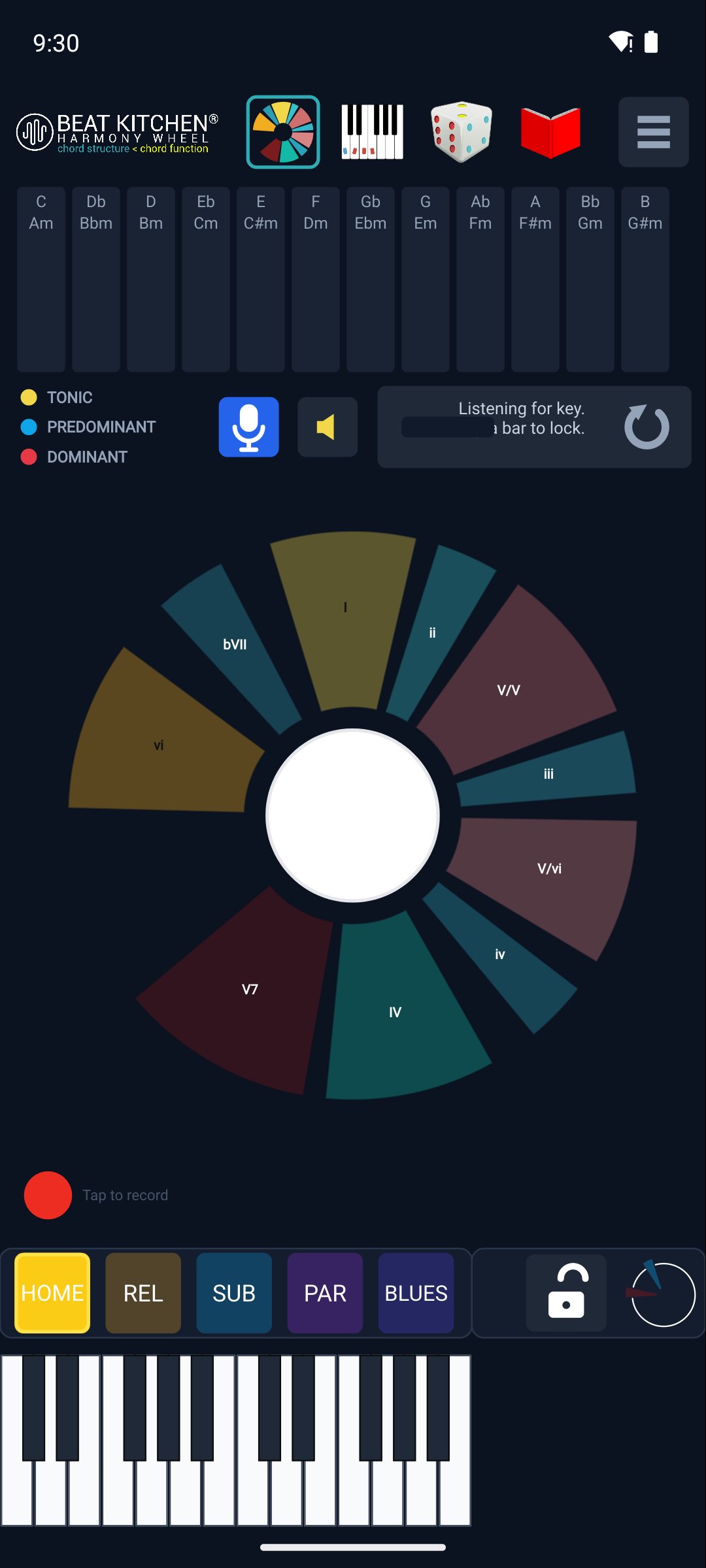
Mic — what it listens to
The Mic toggle turns microphone listening on and off. With it on (it glows blue), the wheel analyzes live audio from your mic — play a guitar, a piano, sing into it, hold an instrument up to your phone, and it detects the chords. It’s off by default, because you don’t always want the app listening, and because you may be feeding it cleaner input instead: MIDI, or its own keyboard. Mic input is the “point it at the world” mode; MIDI is the exact, no-noise mode.
Speaker — what it plays
The Speaker toggle controls the wheel’s preview audio — the little sounds it makes when you click a wedge or a key, plus its built-in synth tones. Turn it off and those previews go silent (handy when you just want to see the analysis without hearing clicks).
One important boundary: the speaker toggle only affects the wheel’s own preview sounds. If you’re running the Harmony Wheel as a plugin on a DAW track, the track’s audio passing through is unaffected — silencing previews never silences your music.
Bonus wedges
The wheel shows the common functions by default, but two more secondary dominants are available: V/ii and ii/vi. The Bonus toggle locks them on so you can see and click them. Switch it on when you’re working with richer harmony and want those extra secondary functions in reach; leave it off for a cleaner wheel while you’re learning the core chords.
The legend
Under the BK logo is an expandable legend — the color key for Tonic / Predominant / Dominant. If you ever forget which color means which job, open it. It’s the same color grouping the wedges use (covered in Reading a Chord), kept one tap away.
A note on detection
Behind the scenes the wheel uses several detection engines to hear chords from a full mix or a solo instrument — you don’t operate them, they just work. The thing you do control is the input: mic for live audio, MIDI for exact notes, or the on-screen keyboard for clicking around. Cleaner input means cleaner detection — if a noisy room is confusing it, MIDI or the keyboard will always be exact.
What to Practice
- Turn the Mic on and play an instrument into it; turn it off and feed MIDI or click the keyboard instead. Notice which gives steadier detection.
- Toggle the Speaker off and watch the wheel analyze in silence, then back on to hear previews.
- Switch on Bonus wedges and click V/ii — hear a secondary dominant you don’t get on the default wheel.
Search This Guide
This Course
- 1. What the Harmony Wheel Is
- 2. Reading a Chord — Wedges and Function
- 3. Harmonic Spaces
- 4. Finding the Key — Listen Mode and the Key Tracker
- 5. The Keyboard and Enharmonic Spelling
- 6. Mic, Speaker, Bonus Wedges, and the Legend
- 7. The Tetrachord Toolkit
- 8. The Random Chord Generator
- 9. The Built-in Guidebook
- 10. Options and Settings
When you're ready to take the next step, it starts with a place where you can ask questions. We teach live — small group, cameras optional, taught by someone who gives a shit.
Find Out How You Can Join Us →© 2026 Beat Kitchen School — beatkitchen.io. All rights reserved. Unauthorized reproduction or distribution of this material is prohibited.