The Keyboard and Enharmonic Spelling
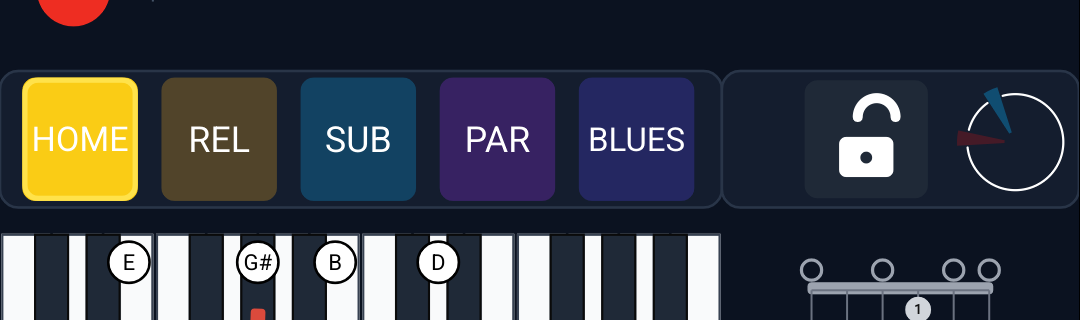
Under the wheel sits a piano keyboard that shows the notes of whatever chord is in play — detected from audio, clicked on a wedge, or played by you. It’s both a readout and an instrument.
Reading the notes
Each note in the chord gets a labeled circle on the key:
- Blue marks the root — the note the chord is built on and named after.
- Red marks the other chord tones — the third, fifth, seventh, and any extensions.
So at a glance you see not just which keys but what each one is. A guitar voicing shows alongside, so guitarists get a shape, not just a piano picture.
You can also click or drag on the keyboard to play notes yourself — it sounds through the preview synth, so the keyboard doubles as a way to noodle and hear intervals.
Why the spelling matters — E7’s third is G♯
Here’s a detail that separates a real music tool from a calculator: the keyboard spells notes the way a musician would, based on the chord’s function, not just whichever name is shorter.
The same piano key can be called G♯ or A♭ — same pitch, different name. Which is correct depends on context. In an E7 chord, that note is the major third, and the third of E is some kind of G — so it’s G♯, never A♭. The Harmony Wheel knows this. Play an E7 and the third reads G♯; an A7 spells its third C♯; a D7 spells F♯.
This isn’t fussiness. Spelling a chord correctly is how you understand what it’s doing — a G♯ leads your eye and ear differently than an A♭, even though they’re the same key. The wheel’s spelling matches the rule the web Chord Wheel was validated against, so what you see lines up with how the theory is actually written.
What to Practice
- Click the V7 wedge in C (a G7) and read the keyboard — note the chord tones in red, the root in blue.
- Click around to an E7 and check its third: G♯, spelled the way you’d write it.
- Drag along the keyboard to play the chord tones one at a time and hear how the third and seventh give a dominant chord its pull.
Search This Guide
This Course
- 1. What the Harmony Wheel Is
- 2. Reading a Chord — Wedges and Function
- 3. Harmonic Spaces
- 4. Finding the Key — Listen Mode and the Key Tracker
- 5. The Keyboard and Enharmonic Spelling
- 6. Mic, Speaker, Bonus Wedges, and the Legend
- 7. The Tetrachord Toolkit
- 8. The Random Chord Generator
- 9. The Built-in Guidebook
- 10. Options and Settings
When you're ready to take the next step, it starts with a place where you can ask questions. We teach live — small group, cameras optional, taught by someone who gives a shit.
Find Out How You Can Join Us →© 2026 Beat Kitchen School — beatkitchen.io. All rights reserved. Unauthorized reproduction or distribution of this material is prohibited.