Options and Settings
The last surface — the menu icon at the top right — is the Options page. A short list, but a couple of these matter more than they look.
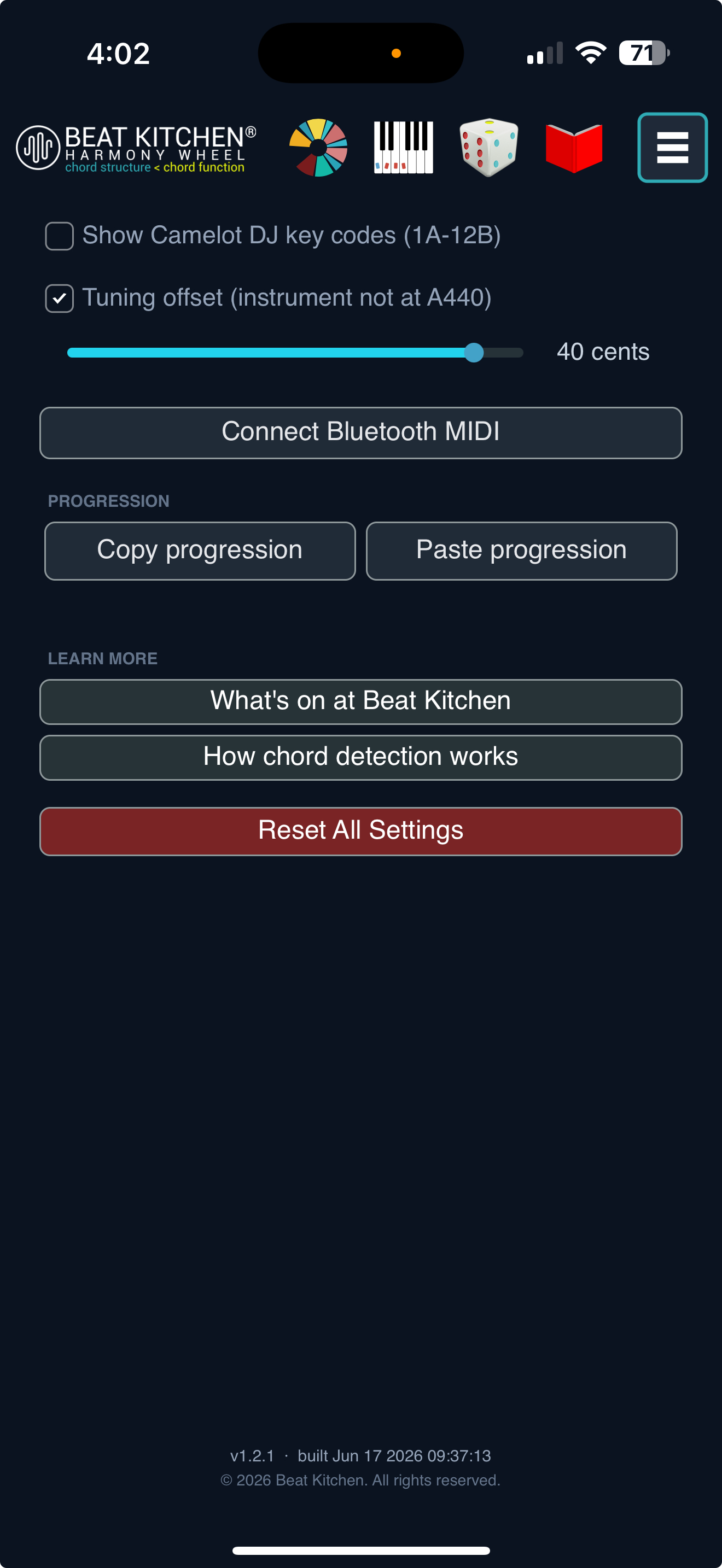
Tuning offset
Chord detection assumes the audio is tuned to standard pitch, A = 440 Hz. Plenty of recordings aren’t — older records, tape that’s drifted, a band that tuned a little flat. When the source is off, the wheel can read everything a half-step or so wrong (the classic symptom: an A♭ reading as G).
The Tuning offset fixes that: tick the checkbox and use the cents slider (−50 to +50) to nudge the detector’s reference up or down until the chords land right. If a track is reading consistently sharp or flat, this is the knob. It’s saved across launches, so once you’ve dialed in your setup you don’t redo it.
Camelot
The Camelot toggle shows DJ-style key codes (8B, 5A, and so on) alongside the normal key names. If you mix harmonically and think in Camelot wheel terms, turn it on; if those codes mean nothing to you, leave it off. It’s purely a display preference, and it persists.
Connect Bluetooth MIDI
Connect Bluetooth MIDI pairs a wireless MIDI controller with the app, so you can feed it exact notes from a keyboard without a cable. It’s the cleanest way to get precise input — no mic noise, no detection guesswork — especially on a phone or tablet.
Copy and Paste progression
Under Progression, Copy progression puts your current set of chords on the clipboard, and Paste progression loads one back in. It’s how you move a progression between the wheel and the rest of your work — capture something you found by ear, or drop in chords to analyze.
Learn more
Two links under Learn More reach back to Beat Kitchen: What’s on at Beat Kitchen (current classes and events) and How chord detection works (the explainer for what the wheel is doing under the hood). Worth a read if you’re curious why a chord reads the way it does.
Reset All
Reset All Settings returns the settings to defaults — the tuning offset, your last tetrachord set, and the display options like Camelot. The escape hatch for when you’ve changed something you can’t remember and want a clean slate.
What persists
Everything on this page is remembered between sessions: the tuning offset, your last tetrachord set in the toolkit, and Camelot visibility. Set the app up the way you like it once, and it stays that way.
(The version and build date are shown here too — useful when reporting an issue.)
What to Practice
- Play a track you know is tuned flat, turn on the Tuning offset, and slide it until the chords read correctly.
- If you DJ, switch on Camelot and notice the key codes appear next to the names.
- Remember Reset All is here if your settings ever drift somewhere confusing.
Search This Guide
This Course
- 1. What the Harmony Wheel Is
- 2. Reading a Chord — Wedges and Function
- 3. Harmonic Spaces
- 4. Finding the Key — Listen Mode and the Key Tracker
- 5. The Keyboard and Enharmonic Spelling
- 6. Mic, Speaker, Bonus Wedges, and the Legend
- 7. The Tetrachord Toolkit
- 8. The Random Chord Generator
- 9. The Built-in Guidebook
- 10. Options and Settings
When you're ready to take the next step, it starts with a place where you can ask questions. We teach live — small group, cameras optional, taught by someone who gives a shit.
Find Out How You Can Join Us →© 2026 Beat Kitchen School — beatkitchen.io. All rights reserved. Unauthorized reproduction or distribution of this material is prohibited.